
It happens at the worst possible moment. You’re halfway through explaining a complex concept, your students are engaged, and then-silence. The screen freezes. The audio cuts out. Or worse, the platform crashes entirely. For any educator running virtual classrooms is online learning environments where instruction occurs in real-time via digital platforms, this is the nightmare scenario. But panic doesn’t help anyone. What helps is having a rock-solid backup plan ready before the first student logs in.
Tech failures aren’t rare anomalies anymore; they’re an occupational hazard of modern education. Whether you’re using Zoom is a video conferencing tool widely used for online meetings and classes, Microsoft Teams is a collaboration platform integrating chat, video, and file sharing, or Google Meet, connectivity drops happen. Your job isn’t to prevent every glitch-that’s impossible-but to ensure that when they do occur, learning continues with minimal disruption. This guide breaks down exactly how to build those safety nets so you can teach with confidence, knowing you have a Plan B (and C) ready to go.
The Pre-Flight Checklist: Preventing Problems Before They Start
The best way to handle a tech failure is to minimize its impact by preparing thoroughly beforehand. Think of it like packing for a trip: you hope nothing goes wrong, but you pack an umbrella just in case. Start by establishing clear communication channels outside your primary video platform. If your main class runs on Zoom, don’t rely solely on Zoom chat for emergency updates. Create a secondary line of communication, such as a dedicated WhatsApp group, a Discord server, or even a simple email distribution list. Make sure every student has your contact info saved before Day 1.
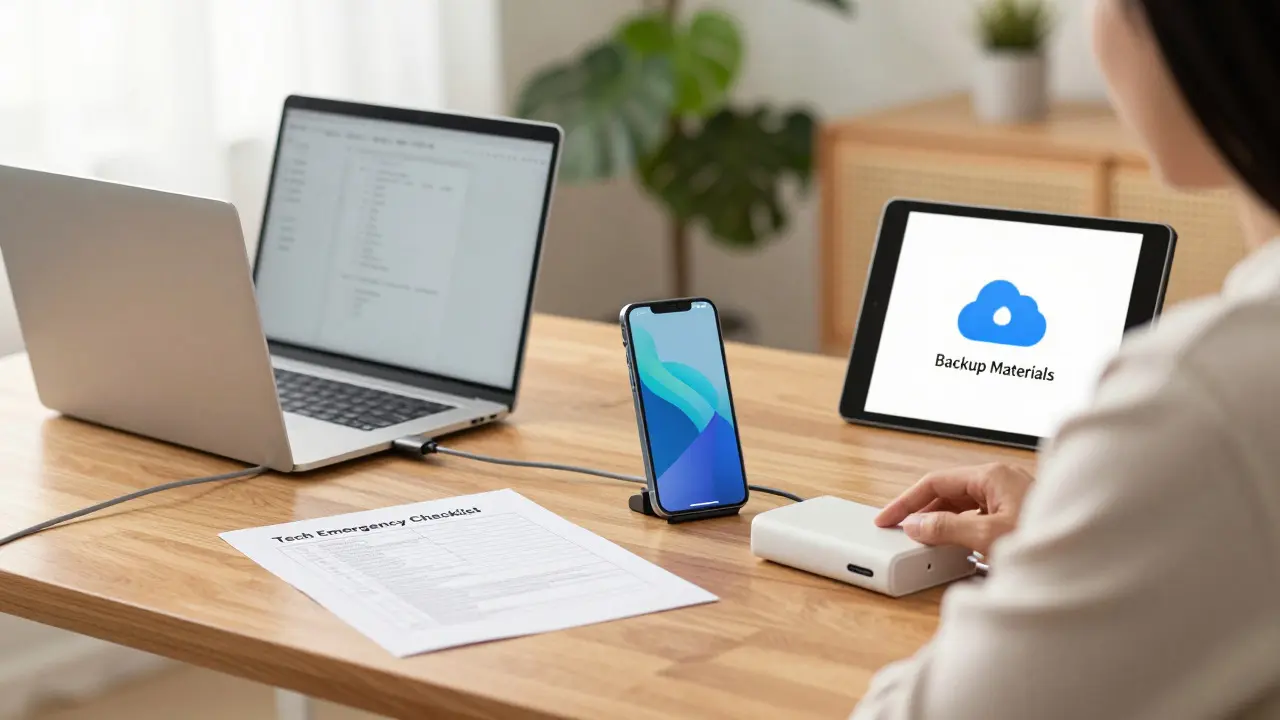
Next, audit your own setup. Are you hardwired via Ethernet, or are you relying on Wi-Fi? Hardwiring is always more stable. Do you have a mobile hotspot ready as a backup internet source? Many teachers forget that their smartphone can become a lifeline if home broadband fails. Test this hotspot regularly. Also, keep a fully charged power bank nearby. Nothing kills momentum faster than a laptop dying mid-lecture because the charger was buried under papers.
Create a "Tech Emergency Folder" on your cloud drive (Google Drive, Dropbox, OneDrive). This folder should contain:
- Low-bandwidth versions of materials: PDFs instead of heavy videos, text transcripts of slides, and audio-only recordings.
- Alternative meeting links: Pre-generated links for Zoom, Teams, and Google Meet so you can switch platforms instantly without fumbling for settings.
- A "Plan B" lesson outline: A simplified version of your lesson that can be delivered asynchronously if live interaction becomes impossible.
When the Screen Freezes: Immediate Response Protocols
So, the freeze happens. Your heart sinks. Here’s what you do next, step-by-step, to regain control within minutes.
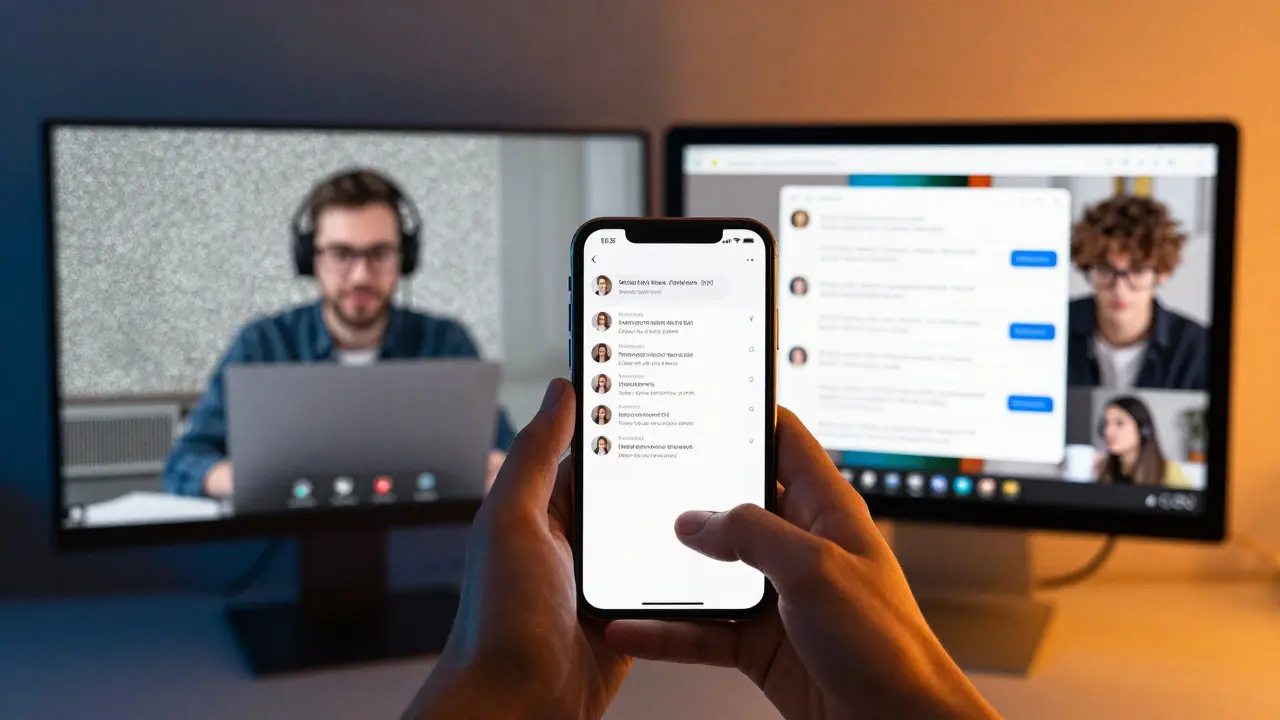
- Stay visible. If your video freezes but audio works, keep talking. Tell students, "I see the freeze too. Stay put while I troubleshoot." If both video and audio die, send a quick message via your secondary channel (email/SMS): "Tech issue. Stand by. Switching to [Backup Platform] in 3 minutes. Link here: [URL]."
- Switch platforms quickly. Don’t spend ten minutes restarting your computer if you have a backup link ready. Jump into the alternative platform. Most major tools allow you to join a meeting from another device easily. Have your phone logged in to your backup platform so you can bridge the gap if your desktop is stuck.
- Engage while you wait. While students migrate, give them a micro-task. Ask them to type one question about today’s topic in the chat of the new room. This keeps them focused and prevents them from logging off in frustration.
If the entire platform goes down (server-side outage), pivot immediately to asynchronous mode. Post the pre-prepared low-bandwidth materials to your Learning Management System (LMS) like Canvas or Blackboard. Assign a short reflective question or a quiz that doesn’t require real-time interaction. This turns a crisis into a self-paced learning opportunity.
Asynchronous Alternatives: Keeping Momentum When Live Fails Completely
Sometimes, no amount of switching platforms will save the day. Maybe the storm knocked out power for half the district, or the school’s firewall blocked the backup service. In these cases, your ability to deliver content asynchronously determines whether the class loses a week or just an hour.
Your "Plan B" lesson outline should be modular. Instead of one long lecture, break the content into three 10-minute chunks. Record these using a simple tool like Loom is a screen and camera recording software for creating quick video messages or even your phone’s voice memo app. Upload them to your LMS with clear instructions: "Watch Video 1, then answer Question 1 in the discussion board."
Use interactive elements to maintain engagement. Tools like Kahoot! is a game-based learning platform for quizzes and polls or Mentimeter is a live polling and presentation tool for audience engagement work well asynchronously too. Students can participate in polls at their own pace, and you can review results later to tailor the next live session. This approach ensures that even if the live connection dies, the pedagogical intent remains intact.
| Failure Scenario | Primary Solution | Secondary Solution | Time to Recover |
|---|---|---|---|
| Local Internet Outage | Switch to Mobile Hotspot | Pivot to Asynchronous LMS Content | 2-5 minutes |
| Platform Server Crash (e.g., Zoom Down) | Migrate to Alternative Platform (Teams/Meet) | Email Discussion Thread + Voice Memo | 5-10 minutes |
| Hardware Failure (Laptop Dies) | Join via Smartphone Tablet | Delegate Co-Teacher or TA to Lead | 3-7 minutes |
| Widespread Power Outage | Cancel Live Session | Extend Deadline for Asynchronous Assignment | N/A (Pre-planned) |
Managing Student Anxiety and Expectations
Tech failures frustrate teachers, but they often stress students more. They worry about missing crucial information, falling behind, or being penalized for something out of their control. Your tone during a crisis sets the emotional temperature for the rest of the term. Avoid blame. Say, "Technology is acting up, but we’ve got this," rather than, "Why is the Wi-Fi so bad again?"
Set expectations early. On the first day, explain your backup protocol. Tell students: "If we lose connection, check your email for a new link. If that fails, check the LMS for recorded material. No penalty for late submissions due to tech issues, provided you notify me within 24 hours." This transparency reduces anxiety significantly. Students who know what to do won’t panic; they’ll adapt.
After the incident, debrief briefly. Acknowledge the disruption. "Sorry about the glitch earlier. Let’s recap the key point we missed." Then move on. Don’t dwell on it. Resilience is modeled, not just taught.
Tools and Technologies That Save the Day
You don’t need expensive enterprise software to build a robust backup system. Often, free or low-cost tools are sufficient. Here’s a toolkit worth exploring:
- Signal or Telegram: For encrypted, reliable messaging if SMS is overloaded. These apps use less data than video and work on poor connections.
- Cloud Storage with Offline Access: Ensure your lesson plans are downloaded locally. If the cloud is slow, you still have your files.
- Voice Memos App: Your phone’s built-in recorder. Perfect for sending quick audio explanations when typing is too slow or bandwidth is too low.
- Screen Recording Software: OBS Studio (free) or Camtasia. Use these to record future lessons proactively, building a library of backups over time.
Integrate these tools into your weekly routine. Spend five minutes each Friday updating your backup folder. Check your hotspot battery. Send a test message to your secondary channel. Small habits prevent big disasters.
Building a Culture of Technical Resilience
Finally, view tech failures not as interruptions, but as part of the digital literacy curriculum. Teach students how to troubleshoot. Show them how to restart a router, clear cache, or switch networks. When students feel empowered to fix minor issues, the burden on you decreases. Turn a frozen screen into a mini-lesson on problem-solving. Ask, "What’s one thing you could try right now to reconnect?" Encourage peer support. Often, a student in the back row knows the trick to fixing the audio driver.
By preparing thoroughly, responding calmly, and leveraging simple tools, you transform potential chaos into manageable hiccups. Your students learn not just the subject matter, but also adaptability-a skill far more valuable in the real world than perfect WiFi.
What should I do if my internet goes out during a live class?
Immediately switch to a mobile hotspot if available. If not, notify students via a secondary channel (SMS/email) to pause and wait for an update. Pivot to asynchronous materials posted on your LMS if the outage persists beyond 5 minutes. Keep communication calm and frequent to reduce student anxiety.
How do I create a backup plan for different video platforms?
Generate permanent meeting links for at least two alternative platforms (e.g., Zoom and Microsoft Teams). Store these links in a shared document or email signature. Practice joining these meetings from different devices to ensure smooth transitions. Inform students of these backup links at the start of the term.
Can I use my phone as a backup for teaching?
Yes. Most video platforms have mobile apps that allow you to host or co-host meetings. Use your phone as a hotspot for your laptop, or join the meeting directly from your phone to share your screen or audio. Keep your phone charged and connected to a cellular network for redundancy.
What is the best way to engage students during a tech outage?
Assign a low-stakes, independent task such as reviewing slides, answering a discussion prompt, or taking a short quiz. Use asynchronous tools like email threads or LMS forums to maintain interaction. Avoid complex activities that require real-time collaboration until stability is restored.
Should I cancel class if technology fails repeatedly?
Only if the failure is widespread and prolonged (e.g., power outage). Otherwise, pivot to asynchronous learning. Consistency matters more than modality. Students appreciate effort to continue learning even if the format changes. Canceling should be a last resort after exhausting all backup options.
