
Imagine trying to learn a complex new skill while listening to a robot read out "Image1.jpg" or "Click here." Frustrating, right? For the millions of people using screen readers daily, this is their reality on poorly designed online courses. You’ve spent weeks crafting engaging video lectures and interactive modules, but if your content isn’t optimized for assistive technology, you’re locking out a significant portion of potential students. Screen reader optimization is the process of structuring digital content so that assistive technologies can accurately interpret and convey information to users with visual impairments. It’s not just about ticking a legal box; it’s about ensuring your education reaches everyone.
Why Accessibility Matters in E-Learning
The market for accessible learning is educational content designed to be usable by people with disabilities, including those who rely on screen readers is growing rapidly. According to recent data, over 1 billion people worldwide live with some form of disability, and many turn to online education for flexibility. If your platform isn’t accessible, you aren’t just missing out on revenue; you are excluding learners who might otherwise thrive in your courses. Furthermore, regulations like the Web Content Accessibility Guidelines (WCAG) are a set of international standards for web accessibility developed by the W3C are becoming stricter. In many regions, non-compliance can lead to lawsuits. Optimizing for screen readers ensures you meet these standards while genuinely improving the user experience for all students, not just those with disabilities.
Understanding How Screen Readers Work
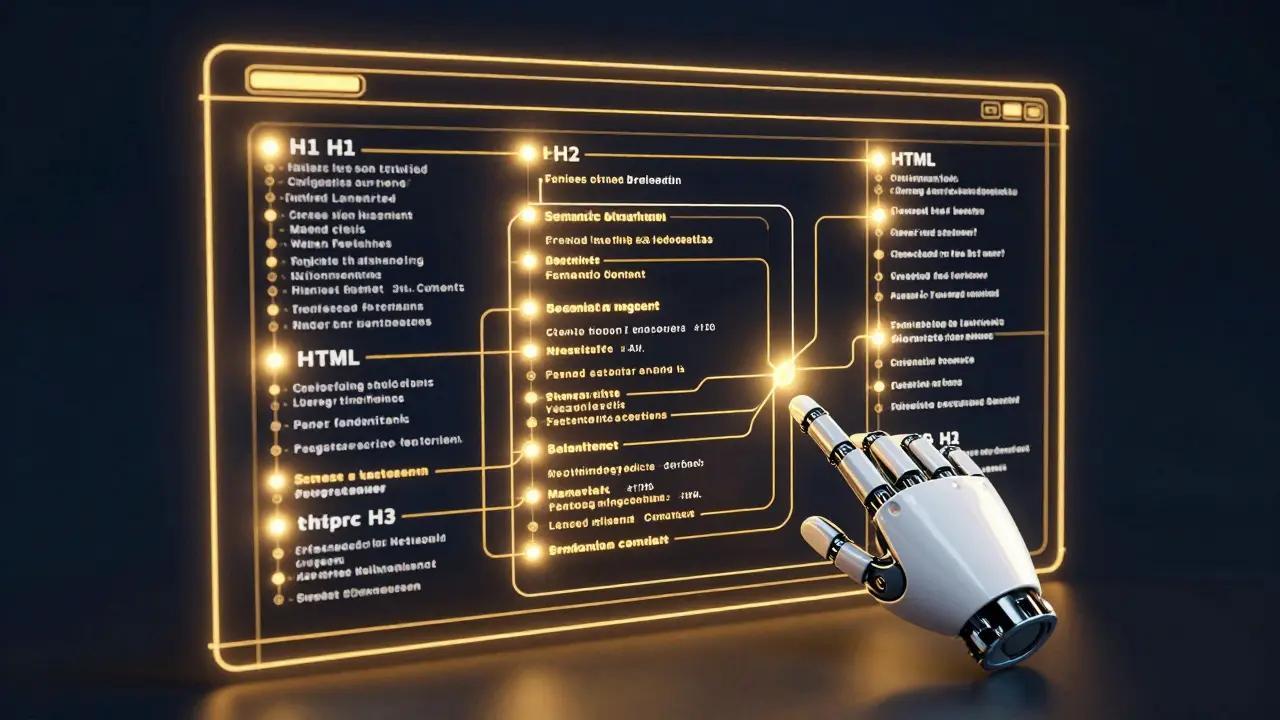
To optimize effectively, you need to understand the tool. Screen readers like JAWS is a popular screen reading software for Windows used by visually impaired individuals, NVDA is a free, open-source screen reader for Windows, and VoiceOver is Apple's built-in screen reader for macOS, iOS, and iPadOS navigate websites by reading the underlying code structure, not what they see on the screen. They rely heavily on HTML semantics. When you use proper headings, lists, and labels, the screen reader can create a logical map of the page. Without these cues, the learner hears a jumbled stream of text. Think of it like handing someone a book where all the chapters are mixed up and there are no page numbers. Proper semantic markup is the backbone of accessibility.
Optimizing Text and Headings
Text is the easiest element to fix, yet it’s often overlooked. Start with your heading hierarchy. Use H1 for the main title, H2 for major sections, and H3 for subsections. Don’t skip levels (e.g., jumping from H1 to H4) just because you want the font size to look a certain way. Screen reader users often navigate by jumping from one heading to the next. If your structure is broken, they get lost. Also, avoid using images of text. If you have a diagram with text inside it, ensure that text is also available as plain HTML text on the page. This allows the screen reader to read the actual words rather than describing an image.
- Use logical heading order: Never skip heading levels.
- Avoid decorative fonts: Ensure text is selectable and readable.
- Provide context: Don’t use single-word headings like "Introduction" without specifying what the introduction is about.
Mastering Alt Text for Images
Images are a common pitfall. Every informative image needs alt text is alternative text that describes the content and function of an image for screen reader users. Decorative images should have empty alt attributes (`alt=""`) so the screen reader skips them. For informative images, describe the content concisely. Instead of "Chart showing sales," try "Bar chart showing a 20% increase in sales from Q1 to Q2." Be specific. If the image contains complex data, provide a longer description below the image or link to a detailed text version. Remember, alt text is for conveying meaning, not for SEO stuffing.
Making Videos and Audio Accessible
Video content is powerful, but it’s often inaccessible. First, always provide captions are text versions of spoken audio in videos, essential for deaf or hard-of-hearing users and helpful for all learners. These aren’t just for the deaf; they help everyone follow along in noisy environments. Second, consider audio descriptions are narrated descriptions of key visual elements in videos, inserted during natural pauses in dialogue. If your video shows a graph being drawn, the audio description explains what’s happening visually. Third, ensure your video player controls are keyboard accessible. Users should be able to play, pause, and adjust volume using only the Tab and Enter keys.
| Media Type | Requirement | Best Practice |
|---|---|---|
| Video | Captions | Use SRT files; check for accuracy and timing. |
| Audio Lecture | Transcript | Provide a full text transcript with speaker labels. |
| Infographic | Alt Text | Describe the key takeaways and data points. |

Navigable Forms and Interactive Elements
Online courses often include quizzes, surveys, and discussion forums. These interactive elements must be fully navigable via keyboard. Each input field needs a visible label associated with it using the `
Testing Your Course for Accessibility
You can’t rely solely on automated tools. While tools like WAVE is a web accessibility evaluation tool that highlights errors and alerts in web pages or axe is an accessibility testing engine for developers can catch technical issues, they miss contextual problems. The gold standard is manual testing. Try navigating your entire course using only a keyboard. Then, use a screen reader to listen to how your content sounds. Does it make sense? Is the flow logical? Involve real users with disabilities in your beta testing phase. Their feedback is invaluable.
Common Pitfalls to Avoid
One common mistake is assuming that color alone conveys information. For example, highlighting correct answers in green and incorrect ones in red helps sighted users but confuses those with color blindness or screen reader users. Always pair color with text or icons. Another pitfall is using PDFs for course materials. PDFs are notoriously difficult to make accessible. If you must use them, ensure they are tagged properly and have a logical reading order. Whenever possible, use HTML-based content instead.
What is the most important aspect of screen reader optimization?
The most critical aspect is semantic HTML structure. Using proper headings, lists, and landmarks allows screen readers to navigate content logically. Without this foundation, other optimizations like alt text become less effective.
Do I need alt text for every image?
Yes, but not necessarily descriptive text for every image. Informative images need concise alt text describing their content. Decorative images should have empty alt attributes (`alt=""`) so the screen reader ignores them.
How do I make my video quizzes accessible?
Ensure the video player is keyboard navigable, provide captions for the video content, and make sure the quiz questions and options are clearly labeled with HTML forms. Avoid relying on mouse hover effects for revealing answers.
Is WCAG 2.1 AA sufficient for online courses?
WCAG 2.1 AA is the current standard for most educational institutions and governments. It covers a wide range of accessibility criteria. However, aiming for WCAG 2.2 or higher is recommended as it includes newer guidelines for mobile and low-vision users.
Can automated tools guarantee my course is accessible?
No. Automated tools can only detect about 30-50% of accessibility issues. Manual testing with keyboard navigation and screen readers, plus user testing with people with disabilities, is essential for true accessibility.
