

You know that feeling when a student drops out of your online course because they got confused by jargon? It’s frustrating. You spent weeks recording videos and building quizzes, but one undefined term stopped them cold. That’s where glossaries and reference materials save the day. They aren’t just nice-to-have extras; they are critical tools for reducing cognitive load and boosting completion rates.
Think about it. When you’re learning something new, like coding or digital marketing, every unfamiliar word is a speed bump. If students have to leave your platform to Google terms, they might get distracted. Worse, they might give up. A well-crafted glossary keeps them in the flow. But how do you build one without spending hours on formatting hell? Let’s break down exactly how to create these resources so they actually help your learners.
Why Your Students Need More Than Just Videos
Online courses often fail not because the content is bad, but because the structure is overwhelming. Cognitive Load Theory suggests that working memory has limits. If a learner is trying to decode terminology while also processing new concepts, their brain gets overloaded. This leads to disengagement.
Reference materials act as external memory aids. They allow students to offload the burden of remembering definitions. Instead of memorizing what "KPI" means while trying to understand how to set one, they can look it up instantly. This frees up mental space for actual learning. In fact, studies in educational psychology show that immediate access to definitions significantly improves comprehension scores in self-paced environments.
But there is a catch. A messy glossary is worse than no glossary at all. If your reference section is a wall of text, students won’t use it. It needs to be scannable, searchable, and integrated into the learning experience. We will cover how to achieve that later, but first, let’s look at what belongs in these documents.
Distinguishing Between Glossaries and Reference Sheets
People often use these terms interchangeably, but they serve different purposes. Knowing the difference helps you decide which format fits your course module.
A glossary is strictly an alphabetical list of terms with brief definitions. Its job is simple: define words. It answers the question, "What does this word mean?" It is passive and static. You place it in a sidebar or a dedicated tab. Students consult it when they hit a roadblock.
Reference sheets, or cheat sheets, are active tools. They answer questions like, "How do I do this step?" or "Which formula applies here?" These are often visual. They might include diagrams, decision trees, or quick-command lists. For example, in a Photoshop course, a reference sheet shows keyboard shortcuts. In a finance course, it might show the steps for calculating ROI.
| Feature | Glossary | Reference Sheet |
|---|---|---|
| Primary Goal | Define terminology | Guide action or process |
| Format | Alphabetical list | Visual layout, tables, charts |
| Usage Context | When encountering unknown words | During practical application |
| Complexity | Low (text-based) | Medium to High (design-heavy) |
| Best For | Theoretical modules | Technical or procedural modules |
Step-by-Step Guide to Building a Useful Glossary
Don’t just dump every technical term from your industry into a document. That creates noise. Follow this process to keep it lean and effective.
- Audit your content first. Watch your video lectures or read your transcripts. Highlight every term a beginner would likely misunderstand. Ignore common words. Focus on specific jargon relevant to your niche.
- Write for clarity, not cleverness. Avoid using complex words to define simple ones. If you are defining "API," don’t say it is an "intermediary interface for programmatic interaction." Say it is "a bridge that lets two software programs talk to each other." Keep definitions under two sentences.
- Add context links. If possible, hyperlink the term in your lesson text to the glossary entry. Better yet, link the glossary entry back to the specific timestamp in the video where the concept is explained. This connects theory to practice.
- Group by theme if necessary. Alphabetical order is standard, but if your course has distinct modules (e.g., "Basics," "Advanced," "Troubleshooting"), consider separate mini-glossaries for each. This reduces scrolling fatigue.
One major pitfall is redundancy. Do not repeat definitions across multiple pages unless absolutely necessary. Use a central repository. Most Learning Management Systems (LMS) allow you to create a global glossary widget. Use it. It ensures consistency and saves you maintenance time.
Designing Reference Sheets That Actually Get Used
If a reference sheet looks like a textbook page, it will be ignored. Design matters here more than anywhere else in your course. The goal is instant recognition.
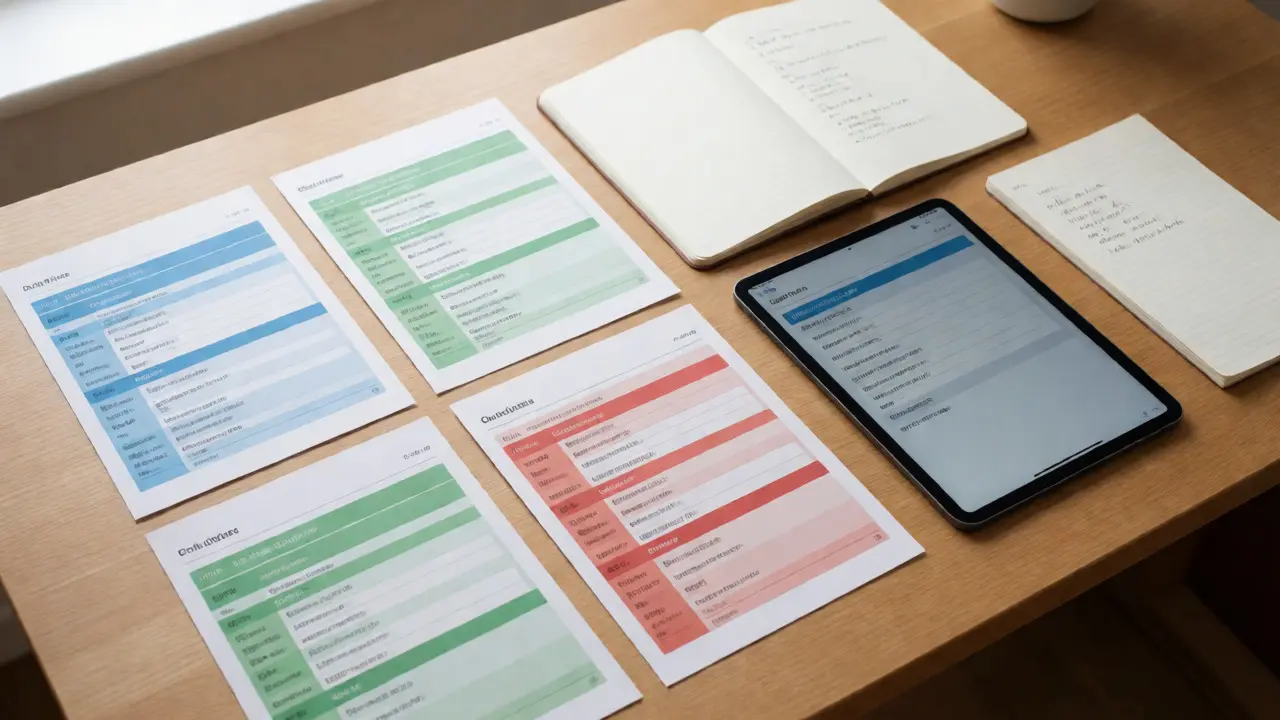
Use visual hierarchy. Bold the key actions. Use color coding to differentiate between types of information. For instance, use blue for inputs, green for outputs, and red for warnings. In a programming course, syntax highlighting isn’t just pretty; it helps users distinguish keywords from variables quickly.
Keep it to one page. Ideally, it should fit on a single screen without scrolling. If you have too much info, split it into smaller cards. Think of it like a menu card at a restaurant. You don’t want the waiter handing you a novel. You want to see the options fast.
Include examples. Abstract rules are hard to remember. Concrete examples stick. If you are teaching Excel formulas, show the formula and the result side-by-side. If you are teaching legal clauses, show a snippet of a real contract. This bridges the gap between theory and reality.
Integrating Resources into the Student Workflow
Creating the files is half the battle. Getting students to use them is the other half. If your glossary is buried in a footer link, nobody will find it.
Place reference materials directly within the lesson interface. Many modern LMS platforms support inline pop-ups. When a user hovers over a bolded term, a tooltip appears with the definition. This is seamless. It doesn’t interrupt the learning flow.
For downloadable PDFs, offer them as pre-work or post-work assets. Tell students explicitly: "Download this cheat sheet before starting Module 3." Make it part of the checklist. Gamification can help here too. Award a badge for downloading the resource pack. It signals value.
Consider mobile compatibility. Over 60% of online course consumption happens on mobile devices. Your dense reference sheet might look great on a desktop monitor but unreadable on a phone. Create responsive HTML versions or simplified mobile-friendly PDFs. Test them yourself on a small screen. If you squint to read it, your students will quit.

Maintenance and Version Control
Your course content changes. Software updates. Regulations shift. Your glossary must evolve too. An outdated definition causes more confusion than no definition at all.
Set a review schedule. Every six months, audit your terms. Check for broken links. Verify that definitions still align with current industry standards. If you use version control for your code, apply similar logic to your docs. Label your reference sheets with dates, e.g., "SEO Cheat Sheet v2.1 - Jan 2026." This builds trust. Students know they are getting fresh info.
Invite feedback. Add a simple "Was this helpful?" button next to glossary entries. If 80% of users click "No," rewrite that definition. Data beats guesswork. You might find that a term you thought was obvious is actually confusing everyone. Fix it fast.
Tools to Simplify the Process
You don’t need expensive software to start. Here are some accessible options depending on your tech stack.
- Notion: Great for collaborative glossaries. You can create database views, filter by category, and embed it directly into web pages. It handles rich media well.
- Confluence: Ideal for corporate training. Strong search capabilities and easy permission settings. Good for large teams maintaining shared knowledge bases.
- Canva: Perfect for designing visual reference sheets. Drag-and-drop templates make professional-looking cheat sheets easy, even for non-designers.
- LMS Native Features: Platforms like Teachable, Kajabi, or Moodle often have built-in glossary widgets. Always check these first. They integrate seamlessly with student accounts and progress tracking.
Choosing the right tool depends on your audience. Tech-savvy users might appreciate a searchable Notion database. Beginners might prefer a clean, printable PDF from Canva. Match the tool to the user’s comfort level.
How many terms should I include in a course glossary?
There is no magic number, but aim for quality over quantity. Include only terms that are essential for understanding the core lessons. Typically, 15-30 terms per major module is sufficient. If you have hundreds of terms, consider splitting them by topic or creating a master index with sub-pages. Too many entries dilute the value and make searching tedious.
Should I put the glossary before or after the lesson?
Ideally, provide access both ways. Place a preview of key terms at the beginning of the module to prime the learner. Then, keep the full glossary accessible via a persistent sidebar or header link throughout the course. This allows students to prepare beforehand and look things up during the lesson without navigating away.
Can I use AI to generate my glossary definitions?
Yes, but always edit the output. AI models like GPT-4 can draft definitions quickly, but they often lack specific contextual nuance. They might give a generic dictionary definition instead of how the term applies specifically in your course. Use AI for drafting, then manually refine the language to match your brand voice and ensure accuracy.
What is the best format for reference sheets?
PDF is the most universal format for downloads because it preserves layout across devices. However, interactive HTML pages are better for online viewing because they allow clicking and zooming. Offer both if possible: a clickable web version for study sessions and a print-ready PDF for offline reference.
How do I handle acronyms that change meaning in different contexts?
Disambiguate clearly. If "CRM" means Customer Relationship Management in your sales module but could mean something else in another field, specify the context in the definition. E.g., "CRM (in this course): Software used to manage customer interactions..." Never assume the student knows the industry-specific variation.

Comments (11)
michelle veluz September 4 2026
OH MY GOD!!! FINALLY someone gets it!!! I have been SCREAMING into the void for YEARS about this exact issue!!! You think you are being helpful with your 'expert' jargon, but you are actually DESTROYING my brain cells one by one!!! It is a conspiracy to make us feel stupid so we buy MORE courses!!! They hide the definitions because they WANT us to quit!!! I am not crazy, I know what I saw!!! Every single time I hit a term like 'synergy' or 'paradigm shift', I feel my soul leaving my body!!! This post is the only truth in a world of lies!!!
Jacob Baby Official September 4 2026
Actually, if you can't handle basic terminology, maybe online learning isn't for you. The article assumes students are fragile flowers who need hand-holding, which is frankly insulting to anyone with a functioning prefrontal cortex. Real learners look things up; they don't expect the instructor to baby them through every single acronym. If you drop out because you didn't read the glossary, that's on you, not the content creator.
john randall September 4 2026
I tend to agree with the point about cognitive load. Keeping terms accessible helps maintain focus without breaking flow. Simple integration methods work best for most users.
Jeff Falcon September 5 2026
Yeah totally, and honestly, I think the part about mobile compatibility is super underrated because so many people are studying on their phones while commuting or waiting in line, and if the reference sheet is just a giant PDF that requires pinching and zooming five times just to read one definition, then yeah, you're gonna lose half your audience right there, especially the younger demographic who expects everything to be instant and visually appealing like Instagram stories, so definitely invest in responsive HTML versions even if it takes more time upfront because long term it saves you tons of support tickets asking 'where is the glossary' which drives everyone crazy.
Alyson Karson September 6 2026
This is HUGE!! Seriously guys, stop overcomplicating it!! Just keep it simple!! Use Canva templates, they are free and easy!! Your students will LOVE you for making it readable!! Go get em!!
Elisabeth Ballet September 6 2026
I love how this emphasizes empathy in design. When we create these resources, we are essentially saying, 'I see you, and I want to help you succeed.' It’s not just about information transfer; it’s about emotional safety in the learning environment. A well-placed tooltip can reduce anxiety significantly, allowing the learner to take risks and explore concepts without fear of getting lost. That psychological comfort is invaluable for retention and deep understanding.
Joanna Mucha September 7 2026
The epistemological framework presented here is somewhat reductive, reducing complex pedagogical interactions to mere data retrieval systems. One must consider the ontological weight of language itself; a glossary does not merely define, it constrains meaning within a specific ideological paradigm. By simplifying definitions to 'bridge' metaphors, we risk flattening the nuanced dialectic between signifier and signified, creating a sterile educational experience devoid of intellectual rigor. It is, perhaps, a symptom of our broader cultural decline into superficiality.
Kim Edwards September 9 2026
THIS IS THE BEST ADVICE EVER!!! I cried reading this!!! My heart was pounding because I realized I've been doing it WRONG all along!!! The shame!!! The glory!!! Now I can finally fix my course and save those poor souls!!! Thank you!!!
Bonnie Watt September 11 2026
Unpopular opinion: most people don't read glossaries anyway. They skim, they guess, they move on. Putting effort into elaborate tooltips is wasted energy when you could just teach better in the first place. If you need a cheat sheet to survive your own lesson, the lesson is bad.
Meagan Mueller September 13 2026
they probably track your clicks on the glossary links too
big lms wants to know what confuses you so they can sell you more stuff later
Dave Gibbeson September 14 2026
Great insights here. To add to the tool discussion, I’ve found that using AI for drafting definitions is a game-changer for speed, but as mentioned, human editing is non-negotiable for context. Also, regarding the 'Was this helpful?' button, integrating that directly into your LMS analytics allows you to identify pain points quickly. If a specific term has high click-through but low satisfaction scores, rewrite it immediately. Data-driven iteration is key to keeping materials fresh and relevant.