
You know that feeling when you're trying to teach a complex concept, but all your students see is a pixelated blur and hear a robotic echo? It’s frustrating. You’re doing the hard work of explaining, but the technology is putting up a wall between you and the learner. In virtual learning environments, digital platforms used for educational purposes where instruction occurs remotely, bad media quality isn’t just an annoyance-it kills engagement. Students tune out. They get headaches from squinting at low-res slides. They miss critical instructions because the audio cuts out.
The good news? You don’t need a Hollywood studio budget to fix this. Most issues come down to three things: lighting, microphone placement, and internet stability. Let’s break down exactly how to upgrade your setup so your virtual classroom feels less like a glitchy video call and more like a real classroom.
Why Audio Matters More Than Video
Here’s a controversial take: if your video is blurry but your audio is crisp, people will stay. If your video is 4K but your audio has static, they’ll leave. The human brain processes sound much faster than visual cues in communication. When audio breaks, cognitive load spikes. Students have to work harder to decode words, leaving less mental energy for actual learning.
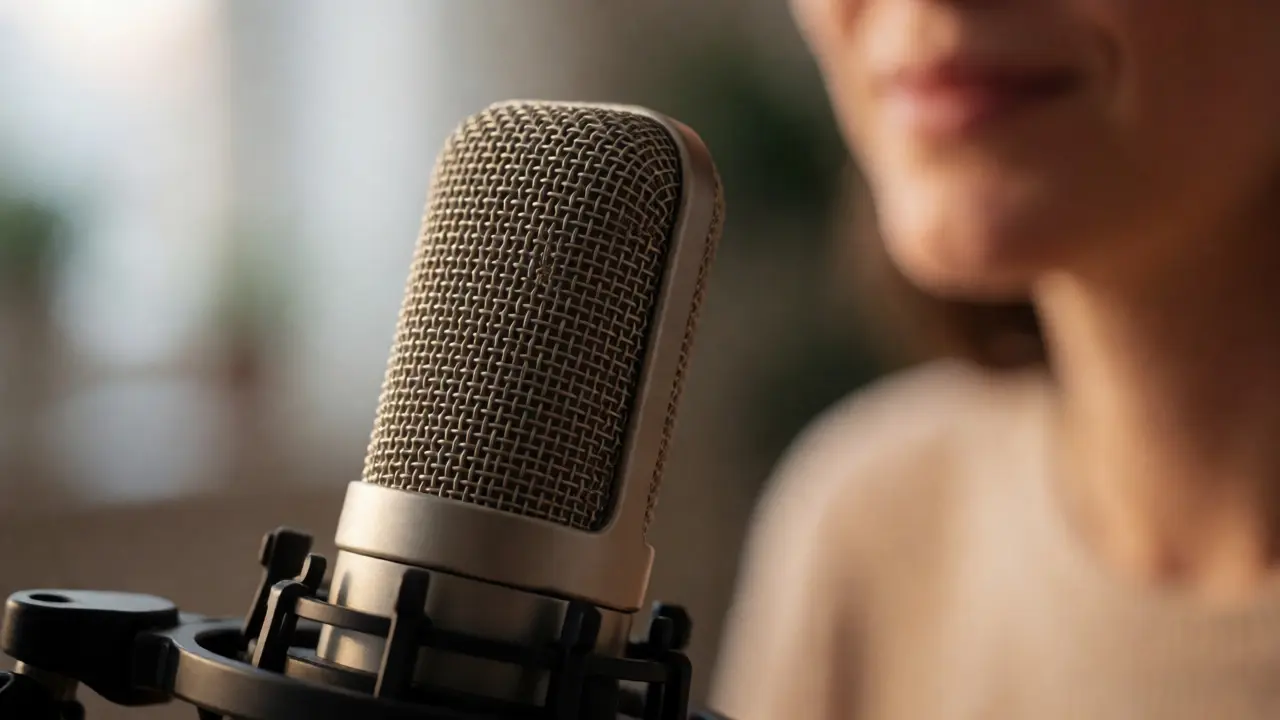
Audio quality is defined by clarity, consistency, and lack of background noise. To achieve this, stop relying on your laptop’s built-in microphone. It’s designed for convenience, not performance. It picks up every keyboard click, fan whir, and distant conversation. Instead, invest in a dedicated USB condenser microphone or a high-quality headset with a boom mic. These devices isolate your voice and reject ambient noise.
Placement is key. Keep the microphone close-about six inches from your mouth-but slightly off-axis to avoid "plosives" (those harsh 'P' and 'B' sounds). If you use a laptop, a simple trick is to place it on a stable surface rather than holding it, which reduces handling noise. Also, check your software settings. Platforms like Zoom or Microsoft Teams often have "noise suppression" features. Turn them on, but be careful-aggressive suppression can make voices sound underwater. Find the balance where background hum disappears, but your natural tone remains intact.
Lighting: The Hidden Factor in Video Clarity
Most people think their webcam is bad. Usually, it’s just hungry for light. Modern webcams have small sensors that struggle in dim rooms. When there isn’t enough light, the camera boosts its ISO sensitivity, introducing digital grain and noise. This makes your face look muddy and unprofessional.
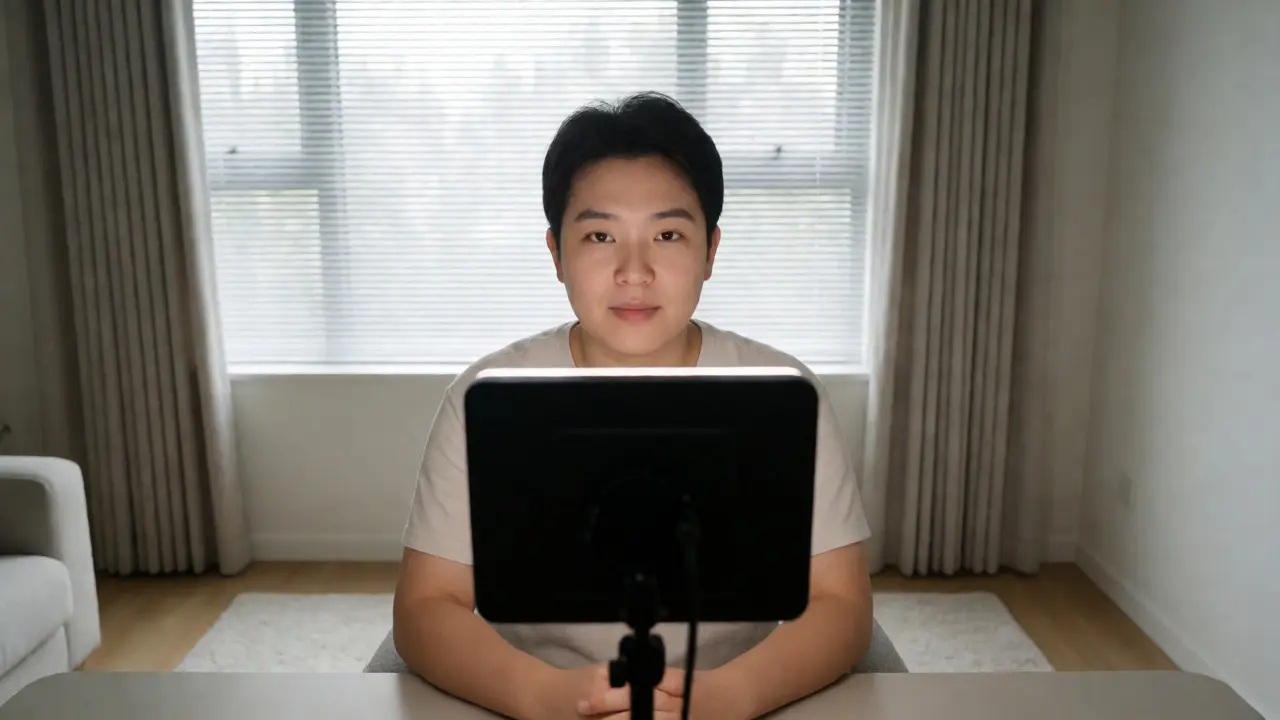
You don’t need expensive ring lights. A simple desk lamp placed behind your computer, shining toward your face, works wonders. Avoid sitting with a window directly behind you. This creates a silhouette effect, turning you into a dark shadow against a bright background. If you must sit near a window, draw the blinds or position yourself so the light hits your face from the side or front, not the back.
Consistency matters too. Flickering lights can cause strobe effects on video. Use steady, warm-white bulbs (around 3000K-4000K color temperature) rather than cool blue ones, which can wash out skin tones. If you’re teaching late at night, ensure your room is evenly lit. Shadows under the eyes or nose can be distracting. A cheap LED panel mounted above your monitor eliminates these shadows instantly.
Internet Stability and Bandwidth Management
You can have the best gear in the world, but if your internet connection drops packets, the experience suffers. Bandwidth refers to the amount of data your connection can handle per second. Video calls are bandwidth-heavy. High-definition video requires about 1.5-3 Mbps upload speed. If multiple people in your house are streaming Netflix or downloading games, your upload pipe gets clogged.
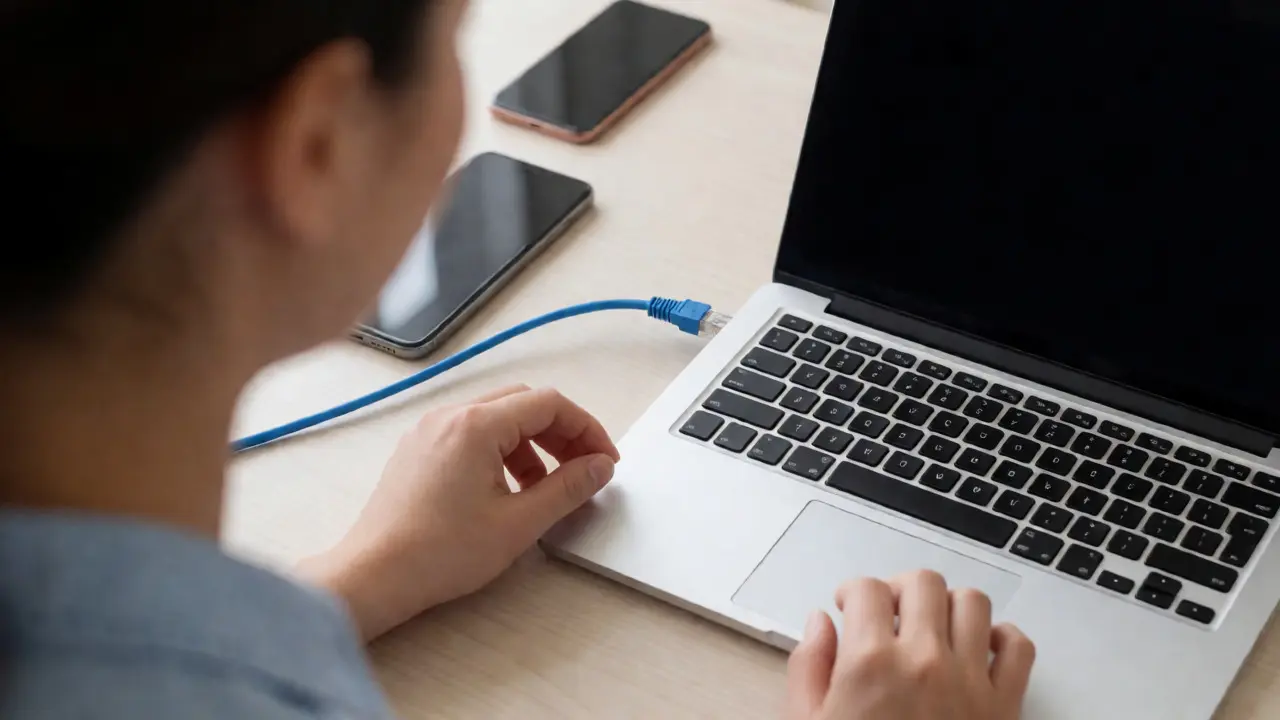
First, run a speed test during your typical class hours. Don’t just test at midnight when everyone is asleep. If your upload speed dips below 5 Mbps, expect lag. Second, prioritize your device. If possible, connect via Ethernet cable instead of Wi-Fi. Wired connections are far more stable and immune to interference from microwaves or neighbors’ routers. If you must use Wi-Fi, move closer to the router or switch to the 5GHz band, which offers higher speeds over shorter distances compared to the crowded 2.4GHz band.
Manage other network traffic. Ask family members to pause large downloads during your class. On your end, close unnecessary browser tabs and applications that consume bandwidth, like cloud backup services or automatic updates. Many modern routers allow you to set "Quality of Service" (QoS) rules, prioritizing traffic from your computer’s IP address. Check your router manual to enable this-it’s a game-changer for stability.
Optimizing Your Webcam Settings
Your webcam software likely defaults to automatic settings, which aren’t always ideal for teaching. Access your camera settings through the platform you use (Zoom, Teams, etc.) or the manufacturer’s driver software. Look for options to disable "Auto-Lighting" or "Face Beauty" filters. These often smooth out skin too aggressively, making you look artificial, or adjust exposure dynamically, causing your brightness to jump up and down as you move.
Set a fixed exposure level once you’ve adjusted your room lighting. This prevents the camera from constantly adjusting to minor movements. Resolution should match your internet capability. If you’re struggling with bandwidth, drop from 1080p to 720p. The difference in image sharpness is minimal on small screens, but the stability gain is significant. Frame yourself correctly: center your head in the upper third of the frame, looking directly into the lens. Eye contact builds trust, even virtually.
Background Noise Control Strategies
Beyond hardware, environmental control is crucial. Hard surfaces reflect sound, creating echoes. Soft materials absorb it. If your room sounds hollow, add rugs, curtains, or bookshelves filled with books. These dampen reverberation. Position yourself away from hard walls if possible; a corner can sometimes amplify bass frequencies.
Communicate with household members. Establish a "do not disturb" signal during classes. Even a dog barking or a door slamming can break concentration. If you can’t control the environment, use software tools. Background noise removal plugins (like Krisp or NVIDIA Broadcast) use AI to filter out non-speech sounds. They’re surprisingly effective at removing keyboard clicks, air conditioning hum, and distant traffic. Test them before going live to ensure they don’t clip your speech.
Testing Before You Teach
Never assume everything is working. Always do a quick test recording five minutes before class starts. Record 30 seconds of yourself speaking, then play it back. Listen for echoes, check for lighting consistency, and verify your framing. Share this test with a colleague or friend to get an outside perspective. What looks fine on your screen might look washed out on theirs.
| Component | Common Issue | Quick Fix |
|---|---|---|
| Audio | Echo or feedback | Use headphones; mute others when not speaking |
| Video | Dark or grainy image | Add front-facing light source; clean lens |
| Connection | Freezing or lag | Switch to Ethernet; close bandwidth-heavy apps |
| Environment | Distracting background | Declutter; use neutral wall or virtual background |
Frequently Asked Questions
Do I really need a separate microphone?
Yes, especially if you teach frequently. Laptop mics pick up too much room noise and lack vocal clarity. A basic $30-$50 USB microphone significantly improves intelligibility and reduces listener fatigue.
Is 4K video necessary for online classes?
No. 720p or 1080p is sufficient for most educational content. Higher resolutions require more bandwidth and processing power, which can lead to lag if your internet or computer isn't robust. Focus on stable frame rates instead.
How do I stop my voice from sounding robotic?
This usually happens due to aggressive noise suppression settings. Lower the intensity of noise cancellation in your conferencing software. Ensure your microphone is close enough to capture clear speech without needing heavy digital enhancement.
What is the best lighting setup for a home office?
A combination of natural light from the front/side and artificial fill light from a desk lamp or ring light works best. Avoid backlighting (windows behind you) and overhead fluorescent lights that cast unflattering shadows.
Can I use my smartphone as a webcam?
Yes, using apps like Camo or DroidCam. Smartphones often have better cameras than webcams. Just ensure your phone is mounted securely and connected via USB for lower latency and charging while in use.

Comments (14)
Kim Edwards August 31 2026
OH MY GOD FINALLY someone said it. I have been screaming into the void for TWO YEARS about this exact thing. It is literally life or death out here in Zoom purgatory.
I spent $40 on a ring light and my students actually stopped looking like hostage videos from the 1970s. The difference is not just 'better' it is TRANSFORMATIVE. Before that I looked like a ghost who had seen too much and now I look like a human being with blood in their veins.
And the audio tip? YES. I bought a cheap USB mic because I was tired of sounding like I was talking through a tin can at the bottom of a well. My class engagement went up by like 200 percent instantly. People stay when they can hear you without getting a headache. It is science but also it is magic.
Bonnie Watt September 1 2026
This article assumes everyone has a spare room, decent internet, and money for gear which is honestly pretty tone deaf considering half the population is working from kitchen tables with bad Wi-Fi.
You say don't use laptop mics but what if you can't afford a separate one? You say get an ethernet cable but what if your router is in the basement and your office is upstairs? This isn't helpful advice it's just privilege disguised as tips. Most people are doing their best with what they have and calling them lazy for having grainy video is rude.
Dave Gibbeson September 3 2026
LISTEN UP. If you want to win stop overthinking it and start DOING. Buy the mic today. Plug in the ethernet. Turn off the background noise suppression if it sounds underwater. That is it. That is the whole game.
Stop making excuses about budget. A $20 headset beats built-in speakers every single time. Stop worrying about 4K resolution when your upload speed is garbage. Focus on stability. Stability wins classes. Go fix your setup right now while reading this comment. Do not wait until next week. Next week never comes. Fix it now.
Sabrina Newland September 3 2026
it really makes u think about how we percieve connection thru screens 🤔 is it the tech or our attention spans?? i feel like even with perfect audio/video we still zone out maybe its deeper than just pixels and waves 😕📡
Amara Akbar September 5 2026
I appreciate the detailed breakdown provided here. As an educator myself I have found that lighting adjustments often yield the most immediate improvements in student perception. It is wonderful to see such practical advice shared openly.
I would add that maintaining eye contact with the camera lens rather than the screen images helps create a stronger sense of presence. Thank you for highlighting these important technical aspects of virtual instruction.
Mark Harvey September 6 2026
great stuff solid advice especially on the mic placement keeps things clear without sounding robotic nice work
Art HND September 7 2026
Most people lack basic digital literacy no amount of gear fixes incompetence
Brandon Olvera September 8 2026
Good points. We need to keep our standards high regardless of location.
Elizabeth Brooks September 9 2026
hey thanks for sharing this! i've been struggling with echo issues forever and didn't realize it could be hard surfaces reflecting sound. gonna try adding some curtains ASAP. also the tip about testing before class is super useful wish i knew that sooner lol
Deb Kortyna, MBA September 11 2026
The assertion regarding audio precedence over visual fidelity is empirically supported by cognitive load theory. However, the dismissal of 4K resolution may overlook specific pedagogical contexts where visual detail is paramount, such as art history or medical imaging analysis. One must consider the subject matter when optimizing bandwidth allocation.
alex kobri September 12 2026
its interesting how much tech mediates our humanity now we optimize signals but lose soul maybe
i dunno just thinking out loud here
Zach Loescher September 12 2026
Interesting read. I wonder if there are any studies on long-term effects of poor audio quality on student retention rates specifically.
Quintin Franzese September 13 2026
Sure let's all go buy new gear. Meanwhile I'm teaching from a closet with a blanket draped over my head because my roommate plays drums. Works surprisingly well. Who needs a studio?
Susan Cole September 14 2026
I agree with the emphasis on simplicity. Sometimes less equipment means fewer things to break during a live session. Keeping it minimal has helped me stay calm.