
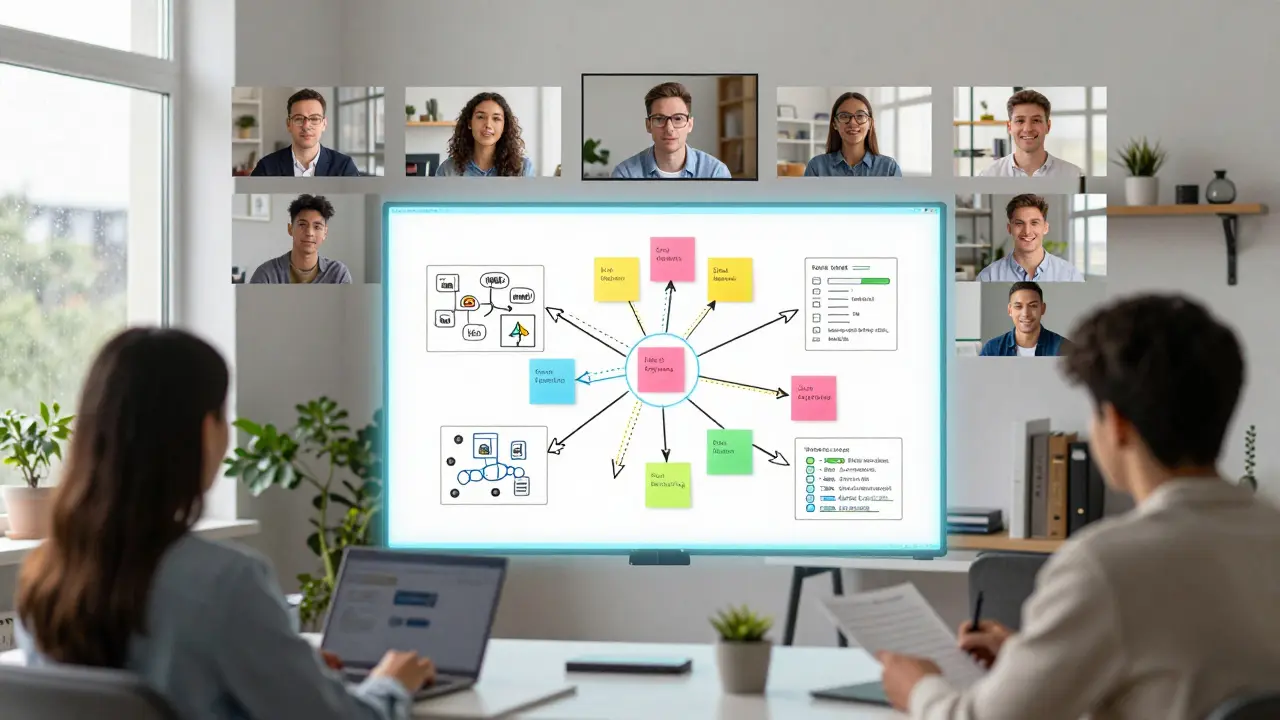
Remember the frustration of trying to draw a diagram on a piece of paper while on a Zoom call? You hold it up to the camera, your hand blocks the view, and half the class is still confused. That era is over. In 2026, virtual whiteboards are no longer just a nice-to-have feature; they are the backbone of effective online learning, enabling real-time collaboration that mimics-and often beats-the physical classroom experience.
But with dozens of platforms promising infinite canvas space and sticky notes, how do you pick the right one? Choosing the wrong tool can lead to cluttered lessons, technical glitches, and disengaged students. This guide cuts through the noise to help you select the best virtual whiteboard for your specific teaching style, whether you are running a small tutoring session or a large university lecture.
Why Virtual Whiteboards Matter in Modern Education
The shift to digital classrooms wasn't just about moving lectures to video calls. It was about recreating the dynamic interaction of a physical room. A traditional blackboard allows a teacher to build ideas visually as they speak. Virtual whiteboards replicate this but add layers of functionality that physical boards simply cannot match.
First, there is persistence. When you erase a chalkboard, the work is gone. On a digital whiteboard, every sketch, note, and link remains accessible. Students can revisit complex diagrams weeks later. Second, there is inclusivity. Visual learners thrive when concepts are mapped out spatially. Neurodiverse students often benefit from the ability to organize information non-linearly, using colors and shapes to create personal mental models.
Furthermore, these tools bridge the gap between passive listening and active participation. Instead of watching a static slide deck, students can jump into the canvas, drag elements around, and contribute their own thoughts. This transforms the lesson from a monologue into a collaborative dialogue.
Key Features to Look For in 2026
Not all whiteboard tools are created equal. While many offer basic drawing capabilities, educational settings require specific features to be truly effective. Here is what you need to prioritize:
- Real-Time Collaboration: Latency is the enemy of engagement. The tool must allow multiple users to edit simultaneously without lag. If a student moves a sticky note, everyone should see it instantly.
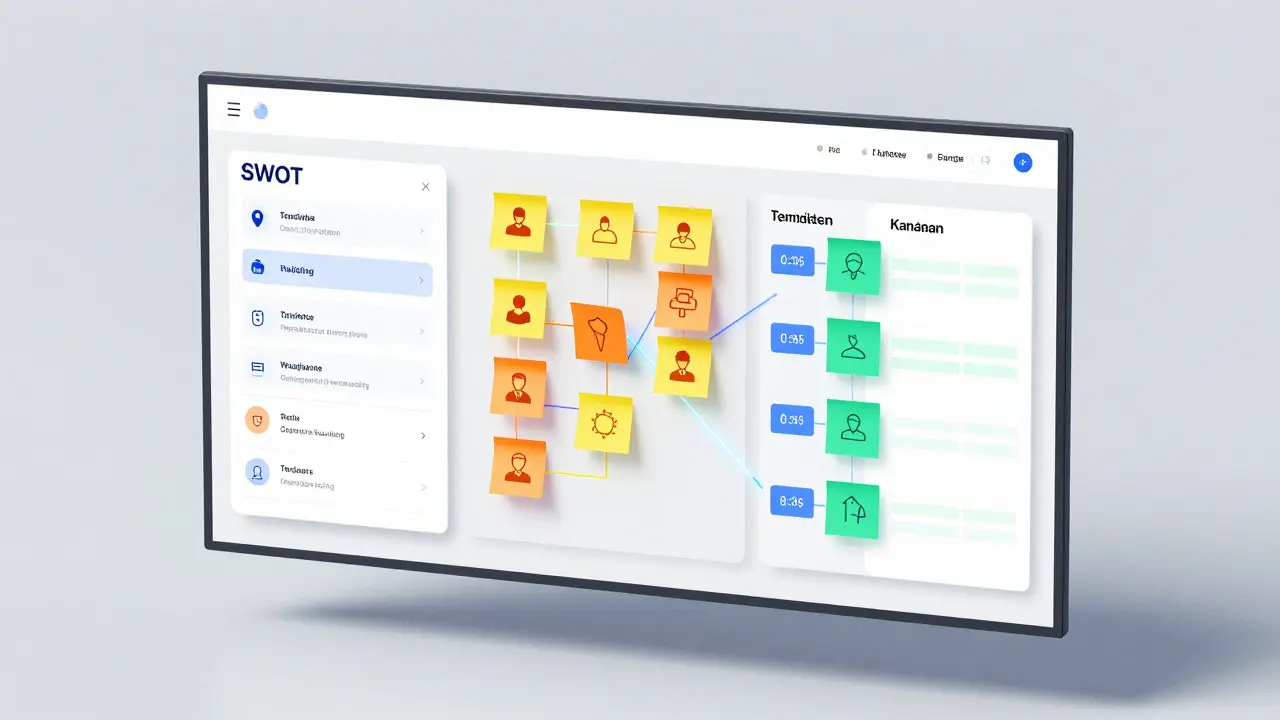
- Template Libraries: Teachers don't have time to design lesson plans from scratch. Look for platforms with pre-built templates for mind maps, SWOT analyses, Kanban boards, and lesson outlines.
- Integration Capabilities: The whiteboard shouldn't exist in a silo. It needs to integrate with your existing tech stack, such as Google Classroom, Microsoft Teams, Slack, or LMS platforms like Canvas and Blackboard.
- Accessibility Standards: Ensure the tool supports screen readers, keyboard navigation, and high-contrast modes. In 2026, accessibility is not optional; it is a legal and ethical requirement.
- Export and Sharing Options: Can you easily turn a brainstorming session into a PDF or image? Can students share their work outside the platform?
Top Virtual Whiteboard Tools Compared
After testing numerous platforms in various educational scenarios, here are the top contenders for 2026. Each has its strengths, depending on your budget, audience size, and technical comfort level.
| Tool | Best For | Free Plan Limits | Key Strength | Pricing (Per User/Month) |
|---|---|---|---|---|
| Miro | Large groups, complex projects | 3 editable boards | Vast template library & integrations | From $10 |
| Mural | Structured facilitation, corporate training | 2 editable boards | Facilitator guides & analytics | From $14 |
| Jamboard (Successor: Jam) | Google Workspace users | Unlimited boards (legacy) / Limited new | Seamless Google integration | Included in Workspace |
| Microsoft Whiteboard | Microsoft 365 ecosystems | Unlimited | Deep Teams integration | Included in 365 |
| FigJam | Creative subjects, design thinking | 3 unlimited files | User-friendly, fun interactions | From $8 |
Miro: The All-Rounder
Miro is the market leader in visual collaboration, known for its robust feature set and extensive ecosystem. It handles large teams well, allowing hundreds of participants to interact on a single board without crashing. Its template library is unmatched, covering everything from simple brainstorming to complex agile workflows. For educators, the "Miro Live" feature allows for guided tours of the board during presentations, keeping students focused on the current topic rather than getting lost in the infinite canvas.
Mural: The Structured Facilitator
If your classes require strict structure, Mural is a powerful alternative designed for guided workshops and structured discussions. It offers built-in facilitator guides that suggest how to run different types of activities. This is particularly useful for instructors who are new to online teaching and need support on how to engage remote students. Mural also provides better analytics, showing you which parts of the board generated the most interaction.
Microsoft Whiteboard & Google Jam: The Ecosystem Plays
For schools already invested in Microsoft 365 or Google Workspace, the native solutions are hard to beat. Microsoft Whiteboard integrates directly into Teams meetings, meaning students don't need to switch apps or log in separately. Similarly, Google's successor to Jamboard offers tight coupling with Google Docs and Slides. These tools are less feature-rich than Miro or Mural but offer zero friction for users already familiar with the ecosystem.
FigJam: The Creative Choice
FigJam is a playful, intuitive whiteboard tool by Figma, ideal for creative and design-focused education. Its interface is less intimidating than competitors, with fun stickers, stamps, and easy-to-use drawing tools. It’s perfect for art classes, marketing courses, or any subject where creativity and informal brainstorming are key. The learning curve is minimal, making it great for younger students.
How to Choose the Right Tool for Your Needs
Selecting a tool isn't just about features; it's about fit. Ask yourself these questions:
- What is your primary use case? Are you doing live lectures, asynchronous project work, or quick check-ins? Miro and Mural excel at live, complex sessions. FigJam is great for quick, creative bursts.
- What is your budget? Most tools offer generous free tiers for individuals. However, if you need admin controls, security compliance, or unlimited boards, you will need a paid plan. Check if your institution already has an enterprise license.
- Who are your students? Younger students may find Miro overwhelming. Simpler interfaces like FigJam or Microsoft Whiteboard might reduce cognitive load and keep them focused on content rather than tool mechanics.
- Do you need offline access? Some tools allow you to download boards for offline work, which is crucial for students with unreliable internet connections.
Best Practices for Using Virtual Whiteboards in Class
Having the right tool is only half the battle. How you use it determines success. Here are some proven strategies:
- Start with a Clear Objective: Don't just open a blank canvas. Begin with a template or a clear prompt. Tell students exactly what they need to produce.
- Use Zones: Divide the board into sections. For example, one area for questions, another for resources, and a third for group work. This prevents chaos and helps students navigate the space.
- Leverage Voting and Reactions: Use built-in voting features to gauge understanding quickly. Instead of asking "Does everyone understand?", ask students to vote on the correct answer or the best idea.
- Encourage Ownership: Let students take turns facilitating. Assign a "board captain" for each session who is responsible for organizing the notes and summarizing key points.
- Follow Up: After the session, export the board and share it with students. Highlight key insights and assign follow-up tasks based on the discussion.
Common Pitfalls to Avoid
Even experienced educators make mistakes when adopting new technology. Watch out for these common issues:
- Information Overload: Infinite canvases can lead to messy, unorganized boards. Encourage students to clean up and group related items regularly.
- Ignoring Accessibility: Not all students can use a mouse or touch screen effectively. Ensure your activities can be completed via keyboard shortcuts and screen readers.
- Over-Reliance on Visuals: While visuals are powerful, they shouldn't replace verbal explanation. Always narrate what you are doing on the board.
- Technical Glitches: Always have a backup plan. If the whiteboard crashes, be ready to switch to a simpler tool or continue via chat.
The Future of Interactive Learning
As we move further into 2026, virtual whiteboards are becoming smarter. AI-powered features are starting to appear, such as automatic summarization of discussions, suggestion of relevant templates based on context, and even real-time translation of sticky notes. These advancements promise to make online learning even more inclusive and efficient.
However, the core principle remains unchanged: successful online learning is about human connection. The tool is just a medium. By choosing the right virtual whiteboard and using it thoughtfully, you can create engaging, interactive, and memorable learning experiences that rival any physical classroom.
Is Miro free for teachers?
Yes, Miro offers a free tier that includes three editable boards, which is often sufficient for individual teachers or small classes. They also provide special pricing and additional features for educational institutions through their Miro for Education program.
Which virtual whiteboard is best for large lectures?
Miro and Mural are generally the best options for large lectures due to their ability to handle hundreds of simultaneous users without performance issues. Both platforms offer "Live Mode" or similar features that allow the instructor to guide attention across the board.
Can I use virtual whiteboards for asynchronous learning?
Absolutely. Many virtual whiteboards support asynchronous collaboration, allowing students to add comments, sticky notes, and drawings at their own pace. This is particularly useful for project-based learning or review sessions.
Are virtual whiteboards secure for student data?
Most major platforms like Miro, Mural, and Microsoft Whiteboard comply with GDPR and other data protection regulations. However, always check your institution's IT policy and ensure you are using enterprise-grade accounts with proper privacy settings enabled.
Do I need a tablet to use virtual whiteboards?
No, you can use a standard computer with a mouse or trackpad. However, a touchscreen device or a graphics tablet can enhance the experience, especially for drawing and handwriting, making it feel more natural.
